
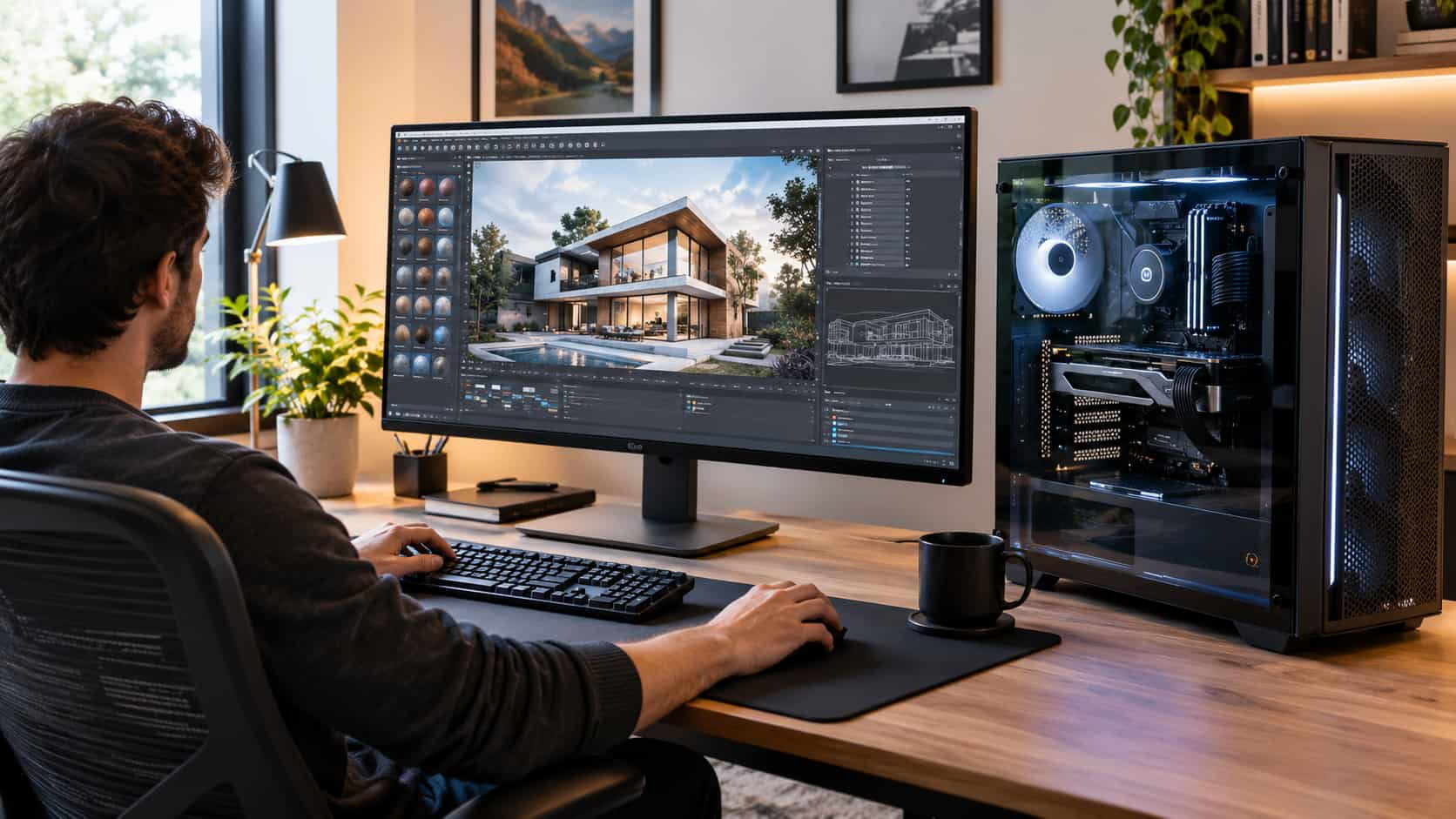
A workstation build used to follow a simple formula: buy a fast CPU, load up on RAM, add a capable GPU, and end up with a machine that beat a branded tower costing hundreds more. That formula still works in 2026, but the price tags have changed. DDR5 kits cost several times what they did a year ago, graphics cards are selling well above launch prices, and SSD prices are creeping up too.
Building your own is still the smartest route to pro-level performance for less. What’s different now is that where you spend matters more than how much you spend. This guide shows you how to match parts to your actual work, which components are worth buying at today’s prices, three realistic build blueprints, and the money-saving moves that don’t cost you speed or stability.
The short version: for most video editors, 3D artists, developers, and engineers, a Ryzen 9 9950X (or the cheaper 9900X), 64GB of DDR5, a 16GB NVIDIA graphics card, a 2TB NVMe drive, and a quality 850W power supply will handle the bulk of professional work. Step up to Threadripper only when you truly need more cores, memory channels, or PCIe lanes than a mainstream platform offers.
What Makes a Workstation Different From a Gaming PC
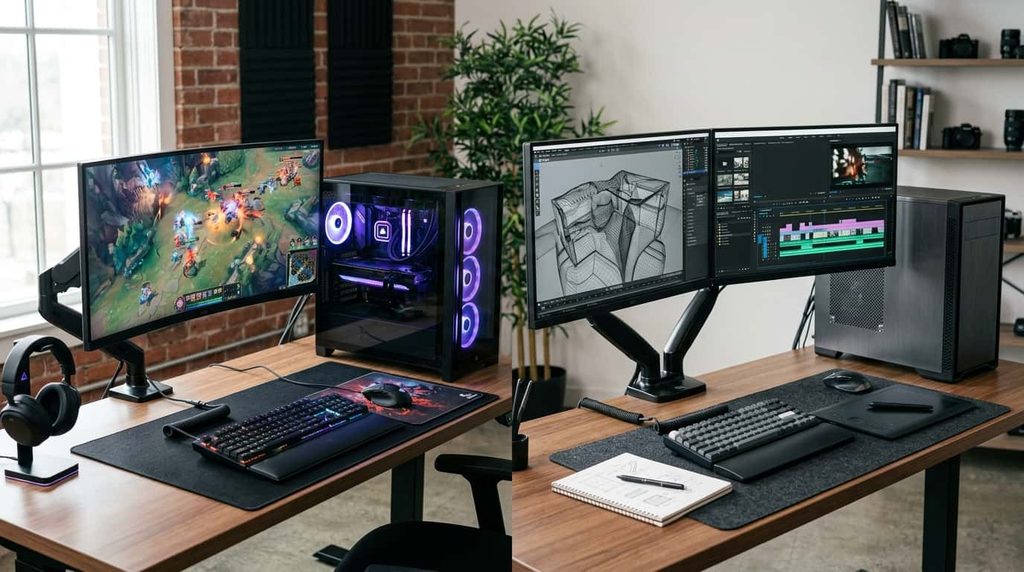
On a spec sheet the parts look similar. In practice the priorities flip. A gaming PC chases frame rates, so it leans on high boost clocks and the fastest GPU the budget allows. A workstation is built for sustained, repeatable output: four-hour renders, 8K timelines, huge compiles, and simulations that run overnight. That puts capacity (RAM, VRAM, storage), cooling, and stability ahead of peak benchmark numbers.
The overlap is bigger than it used to be, though. A modern high-end consumer CPU handles client work and a Friday-night game equally well, which is why plenty of freelancers run a single machine for both.
Start With Your Workload, Not a Parts List
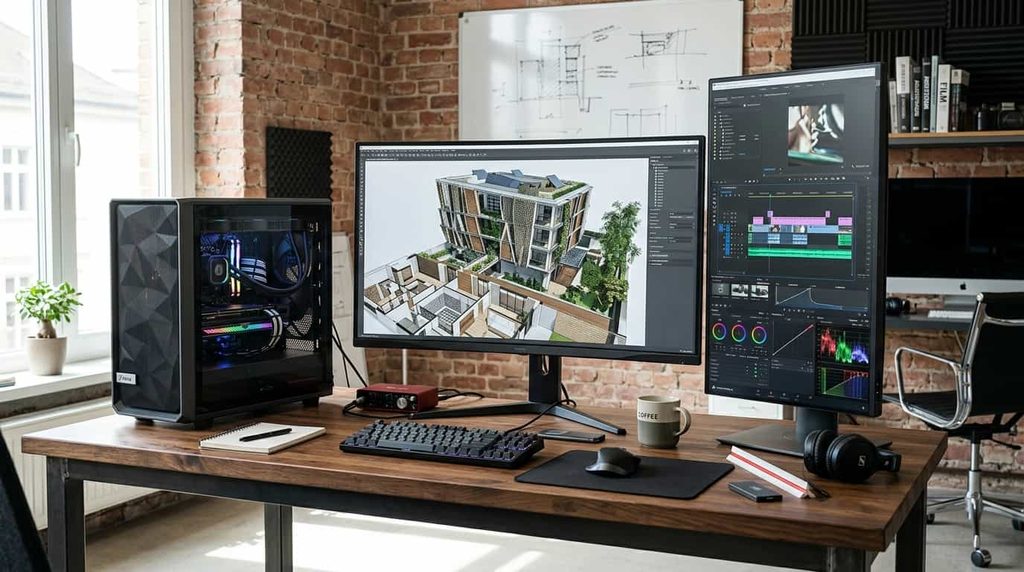
The most common way people overspend is buying the biggest version of every part. Real workloads are lopsided. A colorist is limited by the GPU, a programmer by cores and memory, a CAD user by single-thread speed. Find your bottleneck first, then put the money there.
| Workload | What usually limits you | Spend more on | Save on |
|---|---|---|---|
| Video editing (Premiere Pro, DaVinci Resolve) | GPU, storage speed, RAM on long timelines | 16GB+ GPU, fast NVMe, 64GB RAM | CPU cores beyond 12–16 |
| 3D and rendering (Blender, Unreal, V-Ray) | VRAM for GPU rendering, thread count for CPU rendering | GPU VRAM or CPU cores, depending on your renderer | Fancy case, RGB |
| Software development, VMs, Docker | Cores, RAM, SSD speed | CPU and 64GB+ RAM | GPU (a modest card is fine) |
| CAD and engineering | Single-thread speed, RAM, certified drivers | High-clock CPU, certified GPU if your software requires it | Extra storage |
| Photo and graphic design | RAM, display quality, SSD | Color-accurate monitor, 32–64GB RAM | GPU and CPU |
| Local AI and machine learning | GPU VRAM above all | The biggest VRAM you can afford | CPU, ultra-fast RAM |
Before committing, check two things. First, your software vendor’s system requirements, since some CAD, simulation, and imaging tools only certify specific professional GPUs. Second, how your main application scales. Blender’s GPU renderer cares about VRAM and CUDA/OptiX support, while its CPU renderer cares about thread count. Resolve leans heavily on the GPU, whereas many Adobe tasks still reward a few very fast cores.
The 2026 Price Reality (and What It Means for Your Budget)
Three component categories are behind most of the sticker shock.
Memory. AI data-center demand has pulled DRAM supply away from consumer products. Tom’s Hardware’s RAM price tracker noted that a typical 32GB DDR5 kit that sold for roughly $100 to $200 in October 2025 was starting around $350, when it was in stock at all. Some analysts expect supply to stay tight into 2027.
Graphics cards. A GDDR7 shortage has pushed street prices for Blackwell-generation cards well beyond their launch MSRPs. The RTX 5070 Ti debuted at $749, yet listings this autumn have often sat $200 to $350 higher. Professional RTX PRO cards have climbed even further.
Storage. Forecasts for NAND flash have pointed upward, so SSDs aren’t the bargain they were.
In practice this means: buy the capacity you need today, but don’t pay extra for speed you’ll never feel. In most workstation applications, the gap between a DDR5-6000 kit and a much pricier 8000 kit is small. And check live prices on the day you order, because everything in this guide moves week to week.
Choosing the Parts
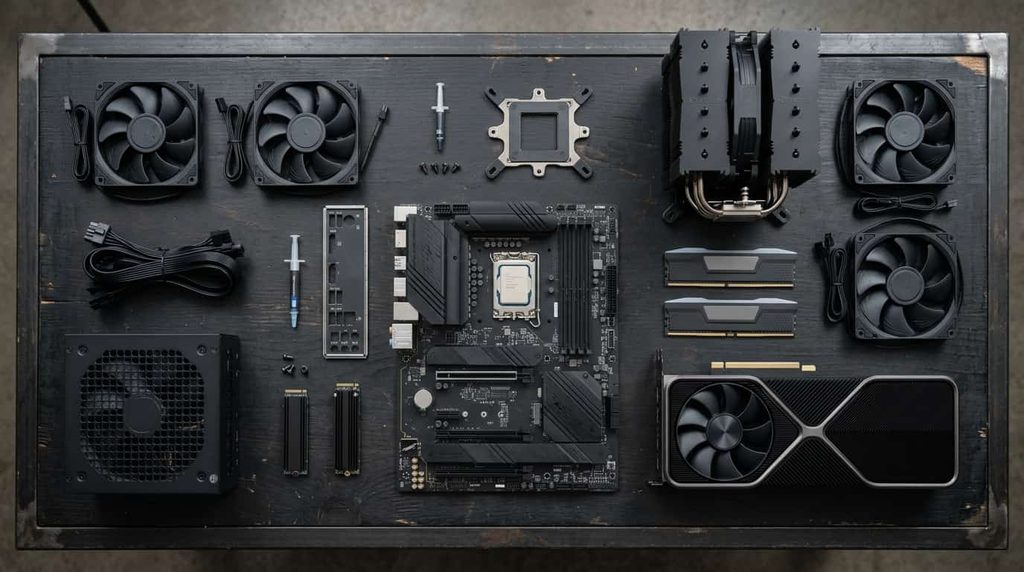
CPU
- Ryzen 9 9900X (12 cores): the value pick. It delivers most of the 9950X’s multi-core muscle for noticeably less money and is easier to cool.
- Ryzen 9 9950X (16 cores): the default recommendation for a mixed-use workstation build. It sits on AM5, a mature and reasonably priced platform with room for a CPU upgrade later.
- Ryzen 9 9950X3D: worth the premium only if you also game seriously or run cache-sensitive software. For pure rendering and compiling it adds cost without adding much.
- Core Ultra 9 285K (24 cores): the Intel alternative. Its Quick Sync video engine helps in some editing and encoding workflows, so it’s a sensible choice if your applications are known to favor Intel. Check recent benchmarks in your specific software first.
- Threadripper 9000 and Threadripper PRO 9000WX: AMD’s true workstation platforms, scaling from 24 up to 96 cores with far more memory bandwidth and PCIe lanes. They shine for large renders, simulation, and multi-GPU setups, but the CPU, motherboard, and registered memory add up fast. If your work doesn’t keep 16 cores busy for hours, you’d be paying for headroom you’ll never use.
Memory
Plan on 64GB. That’s the point where video editors, 3D artists, and developers running a few virtual machines stop thinking about memory at all. 32GB works for photo editing, light development, and 1080p video, while 128GB or more makes sense for big simulations, heavy After Effects compositions, and large datasets.
Two practical tips. First, use two modules rather than four. On AM5, a pair of 32GB sticks is much easier to run at rated speeds than four 16GB sticks, and if you want more than 64GB without going to four, 2x48GB kits give you 96GB on two modules (check your board’s memory support list). Second, put stability ahead of speed: DDR5-5600 to 6000 is plenty. If data integrity matters, as in scientific work, long simulations, or financial modeling, look at ECC. Some AM5 boards support unbuffered ECC, while Threadripper PRO uses registered ECC memory.
Graphics Card
For most pro applications, VRAM decides what you can do. Run out and projects slow to a crawl or fail outright. Here’s how the NVIDIA lineup breaks down, and NVIDIA remains the default for most professional software thanks to CUDA and OptiX support:
- RTX 5060 Ti 16GB: the budget entry. Plenty for editing, design, and learning 3D.
- RTX 5070 Ti 16GB: the sweet spot for most workstation builds, with strong encoders and enough VRAM for demanding timelines and mid-size scenes.
- RTX 5090 32GB: for heavy GPU rendering, large scenes, and bigger local AI models.
- RTX PRO series: ECC memory, certified drivers, and pools from 24GB up to 96GB. Top-end cards now sit at five-figure prices, so choose one only if software certification, ECC, or a very large single-card memory pool is a real requirement.
Install the NVIDIA Studio driver for creative apps. It’s validated against major creative software for stability rather than tuned for day-one game support.
Storage
Think in tiers instead of one giant drive. A 1TB to 2TB PCIe 4.0 NVMe drive handles the operating system, apps, and active projects. A second SSD (NVMe or SATA) works as scratch space and cache for video and 3D work. Bulk archives belong on a large hard drive or a NAS. PCIe 5.0 SSDs cost more and run hot, and in everyday pro workloads you’ll rarely notice the difference. Look at endurance ratings (TBW) and a DRAM cache rather than peak sequential speed, and keep a real backup, because a single drive failure shouldn’t cost you a client project.
Motherboard, Power Supply, Cooling, and Case
- Motherboard: for AM5, a B850 or X870 board is plenty. Prioritize solid power delivery, two or three M.2 slots, and the ports you’ll actually use, such as 2.5GbE or 10GbE for a NAS or USB4 for fast external drives. Overclocking extras and RGB are wasted here.
- Power supply: buy a quality ATX 3.1 unit from a reputable brand. 850W gives comfortable headroom for an RTX 5070 Ti-class build, while an RTX 5090 calls for 1,000W or more. A cheap supply is the worst place to save, because it feeds everything else.
- Cooling: the Ryzen 9 9950X is rated at 170W and can draw more under sustained all-core loads. A good dual-tower air cooler or a 360mm liquid cooler keeps clocks steady through long renders. A CPU that throttles throws away the money you spent on it.
- Case: pick airflow over looks. A mesh front, room for your GPU’s length, and removable dust filters matter more than tempered glass.
Three Workstation Build Blueprints
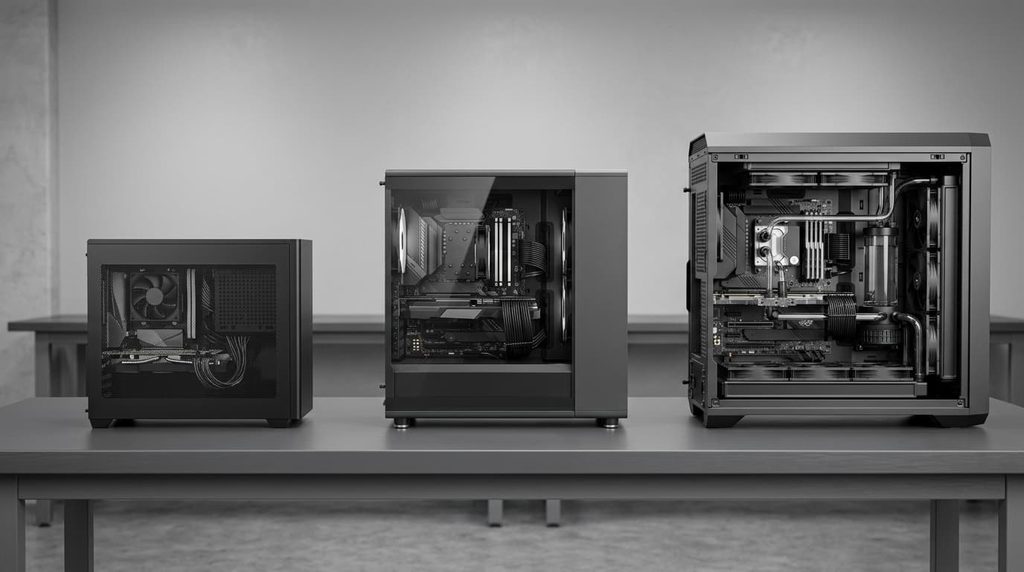
Here are three starting points. The totals are ballpark figures based on retailer listings and price trackers in late September and early October 2026, so treat them as planning ranges rather than quotes.
| Lean | Balanced | Heavy | |
|---|---|---|---|
| Best for | Developers, photographers, entry-level video and 3D | Professional video, 3D, CAD, mixed daily work | Large renders, simulation, local AI, multi-GPU |
| CPU | Ryzen 9 9900X | Ryzen 9 9950X | Threadripper 9960X or 9970X |
| Memory | 32GB DDR5-5600 (2x16GB) | 64GB DDR5-6000 (2x32GB) | 128GB+ registered DDR5 |
| Graphics | RTX 5060 Ti 16GB | RTX 5070 Ti 16GB | RTX 5090 32GB or RTX PRO |
| Storage | 1TB NVMe + 2TB SATA SSD or HDD | 2TB NVMe + 2TB NVMe scratch | 2TB + 4TB NVMe + NAS |
| Power supply | 750W | 850W | 1,000–1,200W |
| Ballpark total | $2,000–2,500 | $3,200–4,000 | $7,000+ |
The Balanced build is where most professionals should land. The Lean build suits developers, photographers, and anyone just starting to freelance in video or 3D. The Heavy build only makes sense when billable work routinely maxes out cores, memory, or VRAM, and its price swings the most because it leans on the two categories with the wildest pricing. Whichever you pick, AM5 leaves room to grow: a faster CPU can drop into the same board later, and extra NVMe drives slot in easily.
How to Build for Less Without Cutting the Wrong Corners
- Look at bundles. With memory so expensive, several retailers have been pairing DDR5 with CPU or motherboard purchases at a discount. If you need all three, a bundle can beat buying separately.
- Consider a used or open-box GPU. From a seller with a return window or a transferable warranty, last-generation 16GB or 24GB cards can undercut new Blackwell pricing. Stress-test it and check temperatures as soon as it arrives.
- Skip premium extras. PCIe 5.0 SSDs, 8000MT/s memory, RGB fans, and showcase cases add cost with almost no productivity benefit.
- Reuse what’s still good. A quality case, a power supply with the right wattage and connectors, hard drives, and your monitor can all carry over, freeing budget for the CPU, RAM, and GPU.
- Buy memory once. Starting with 32GB and replacing it with 64GB later costs more than buying 64GB up front, especially while prices swing. If 32GB truly covers your work, great. If you know you’ll outgrow it, don’t pay twice.
- Weigh the cost of waiting. If a slow machine is costing you more each month than a likely price drop would save, buy now. If your current setup still gets the job done, set a price alert and be patient.
Build It, Buy a Prebuilt, or Choose a Workstation Laptop?
Building yourself usually gives the most performance per dollar and lets you choose every part. The trade-off is that you handle warranties part by part and do your own troubleshooting.
If downtime costs you money, a validated system from a workstation specialist is worth considering. Puget Systems, along with Dell Precision, HP Z, and Lenovo ThinkStation lines, offers tested configurations and support, and off-lease or refurbished units from those lines can be a bargain for the Lean tier, often with ECC memory. Even if you build your own, Puget Systems’ Labs publishes application-specific benchmarks that help you confirm whether a part will really speed up your software.
A workstation laptop makes sense when your work travels with you, such as on-site client sessions or field engineering. Expect to pay more for comparable performance, accept tighter thermal limits and little upgradeability, and treat it as a tool for mobility rather than your main render machine. Many professionals pair a desktop for the heavy lifting with a lighter laptop that connects to it remotely.
Assembly and Setup Checklist
- Update the BIOS first. New boards sometimes ship with older firmware, so use BIOS flashback if your board offers it.
- Install in order. CPU, cooler, RAM (in the slots your manual recommends, usually the second and fourth for two sticks), and SSDs go in before the GPU.
- Test memory. Enable EXPO or XMP, then run a memory test such as MemTest86 overnight. If errors appear, drop the memory speed one step. A stable machine beats a fast one.
- Install the software stack. Operating system, chipset drivers, then the NVIDIA Studio driver.
- Burn it in with real work. Run your actual projects for an hour while watching clocks and temperatures in a monitor tool like HWiNFO. Steady clocks mean the cooling is doing its job.
- Set up backups. One local copy and one off-site or cloud copy, before client work arrives.
Workstation Build FAQ
Is it cheaper to build a workstation or buy a prebuilt? At comparable specs, building is usually cheaper. Prebuilts win when you value warranty, onsite service, and your time over the savings.
Should I wait for RAM and GPU prices to fall? Only if your current machine still does the job. Memory makers are prioritizing data-center products, and some analysts see tightness lasting into 2027, so a quick rebound isn’t a safe bet.
Do I really need ECC memory? Most creators don’t. ECC matters most when a silent memory error could corrupt long simulations, financial models, or scientific data. If that’s you, confirm ECC support on both the board and CPU before buying.
How long will a build like this last? A well-chosen workstation typically stays productive for four to six years, with GPU and storage upgrades extending its life. Cooling and power supply quality decide whether it stays reliable that long.
Final Thoughts
A smart workstation build in 2026 isn’t about owning the most expensive parts. It’s about knowing your bottleneck, buying memory and graphics carefully while prices are inflated, and refusing to pay for features your work won’t use. Start with the workload table, pick the blueprint closest to your needs, check live prices the day you buy, and test the finished system before real deadlines depend on it.