
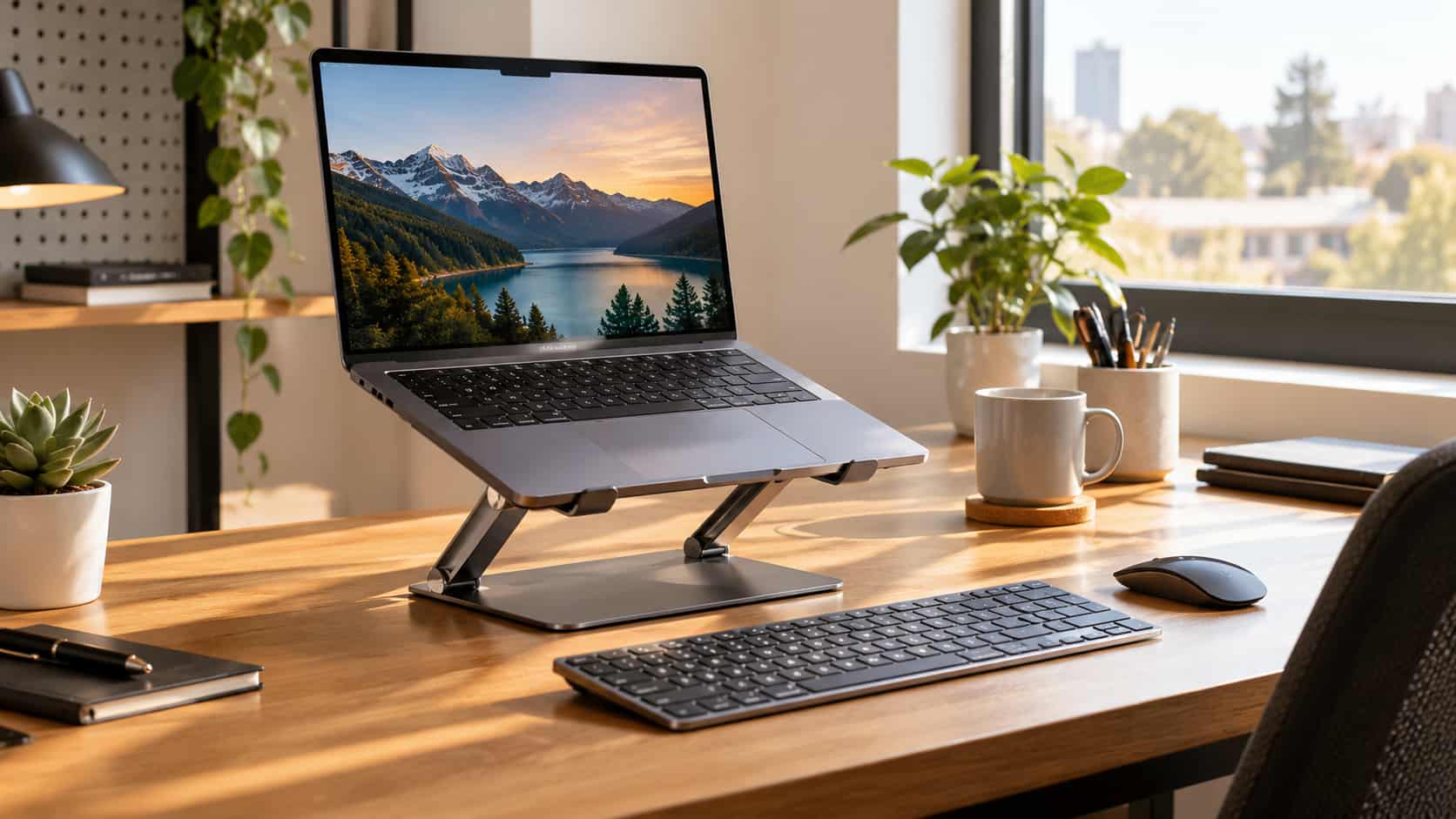
A laptop stand can be one of the simplest upgrades you make to a home office, study area, or everyday computer setup. Unlike replacing your laptop or buying an expensive desk, a stand can change the height and viewing angle of your screen in seconds. That can make a noticeable difference when you spend hours working, studying, browsing, editing photos, or attending video calls.
But not every laptop stand is equally useful. Some are designed mainly for portability, while others are built for a permanent desk setup. Some offer height adjustment, folding mechanisms, or rotating bases, while simpler models focus on stability and airflow.
The right choice depends less on how impressive the stand looks and more on how well it fits your laptop, desk, work habits, and accessories.
What Is a Laptop Stand?
A laptop stand is a platform designed to raise a laptop above the surface of a desk or table. Depending on the design, it may also allow you to change the laptop’s viewing angle or position.
The simplest stands are fixed pieces of metal, plastic, or wood. Adjustable models can raise the screen considerably higher and tilt it toward the user. Some fold flat for travel, while others are designed to remain permanently on a desk.
A stand becomes particularly useful when you want to separate the laptop’s display from its keyboard and trackpad.
For example, you can place the laptop on the stand, connect an external keyboard and mouse, and use the elevated laptop screen more like a traditional desktop monitor. OSHA’s workstation guidance specifically recommends using a separate keyboard and input device when a laptop is used as a primary computer, because laptops can otherwise make it difficult to position the screen and keyboard appropriately at the same time.
That distinction is important: a laptop stand is not just a decorative desk accessory. It can be part of a more flexible workstation.
Why Use a Laptop Stand?

The biggest advantage is better positioning.
When a laptop sits directly on a desk, its screen is often much lower than a conventional desktop monitor. You may naturally bend your neck downward to see it. Raising the laptop can bring the screen closer to a more comfortable viewing height.
OSHA recommends positioning the top of a computer screen at or slightly below eye level and keeping the head and neck aligned with the torso.
A stand can also create more usable space around the laptop. Once the computer is elevated, you can potentially place a keyboard underneath it, move your mouse into a more comfortable position, or use the freed-up desk area for a notebook, tablet, or other equipment.
Other potential advantages include:
- A more comfortable screen position
- Better organization of a small desk
- More space for a separate keyboard
- Improved airflow around some laptop designs
- A cleaner-looking workspace
- Greater flexibility when switching between tasks
- A more practical setup for external monitors
The important thing is to treat the stand as one part of the workstation rather than a complete ergonomic solution by itself.
A Laptop Stand Can Improve Your Screen Position
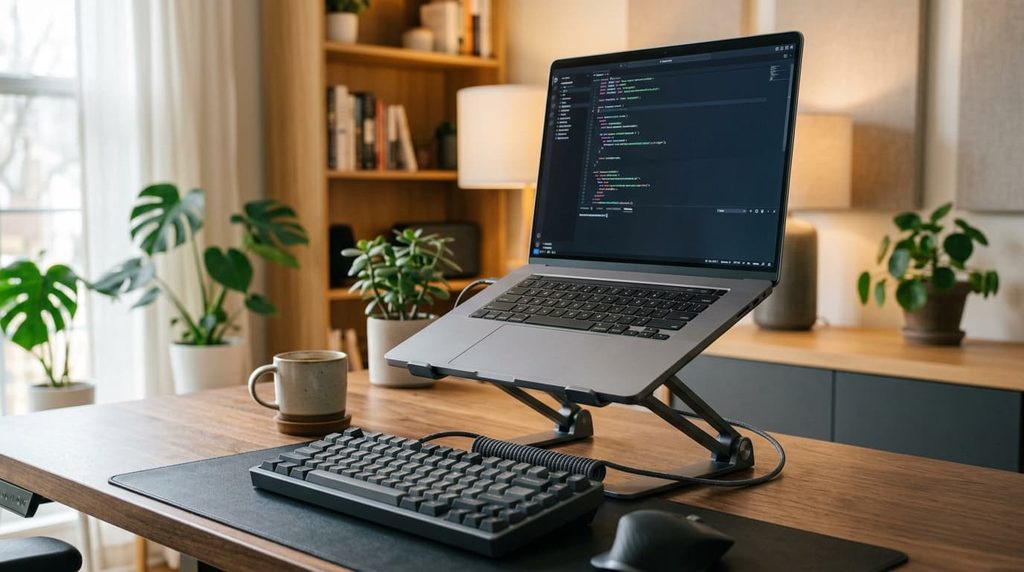
One of the strongest reasons to use a stand is screen height.
Laptops combine the display and keyboard into a single device. That is convenient for portability but creates a compromise at a desk. If the keyboard is at a comfortable typing height, the screen may be too low. If you raise the screen to a comfortable viewing height, the built-in keyboard becomes too high for extended typing.
A stand helps solve this problem by separating those two functions.
For extended desk work, you can place the laptop on a stand and use a separate keyboard and mouse. This lets you position the screen and input devices independently.
OSHA’s workstation checklist recommends keeping the screen at or below eye level while maintaining a neutral head and neck position. It also recommends positioning the keyboard so the hands and wrists can remain in a neutral position.
That is why simply buying the tallest stand available is not necessarily the right approach. You want the height that works with your chair, desk, laptop size, and sitting position.
Does a Laptop Stand Help With Posture?
It can help you create a better workstation position, but a stand does not automatically fix poor posture.
For example, you could place a laptop on an extremely tall stand and still end up with an uncomfortable setup if your chair is too low or your external keyboard is positioned incorrectly.
OSHA emphasizes that there is no single workstation arrangement that works perfectly for everyone. The goal is to adjust the components so your body can remain in a comfortable, neutral position.
A useful setup generally looks like this:
- Your head stays balanced rather than constantly leaning forward.
- Your shoulders remain relaxed.
- Your elbows stay relatively close to your body.
- Your wrists remain reasonably straight while typing.
- Your back is supported by the chair.
- Your feet have stable support.
- The laptop screen is directly in front of you.
The stand is simply the tool that helps you achieve the appropriate screen position.
Laptop Stand and Cooling: Does It Really Help?
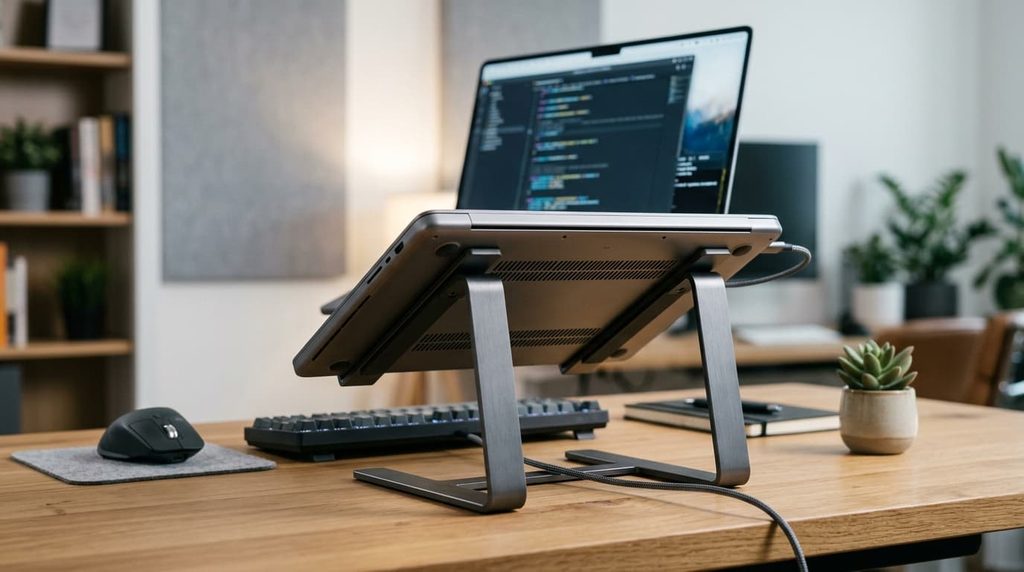
Another reason people buy stands is cooling.
A laptop can generate considerable heat during demanding tasks such as gaming, video editing, 3D rendering, software development, or extended workloads. Raising the machine may allow more air to circulate around its underside, depending on the laptop’s ventilation design and the stand itself.
However, it is important not to overstate this benefit.
A stand is not automatically a cooling pad, and raising a laptop does not guarantee a dramatic temperature reduction. The actual result depends on where the laptop’s intake and exhaust vents are located, the surface beneath it, the stand’s design, and the workload.
A stand with an open structure can be preferable to a completely solid surface if it allows ventilation openings to remain unobstructed.
If your laptop is getting unusually hot, don’t assume that buying a stand is the only solution. Dust buildup, blocked vents, an aging thermal solution, background applications, and demanding workloads can all contribute to higher temperatures.
If you’re maintaining an older laptop, learning how to clean laptop fan components safely may be useful, although internal cleaning should be approached carefully and according to the manufacturer’s guidance.
What Type of Laptop Stand Should You Buy?
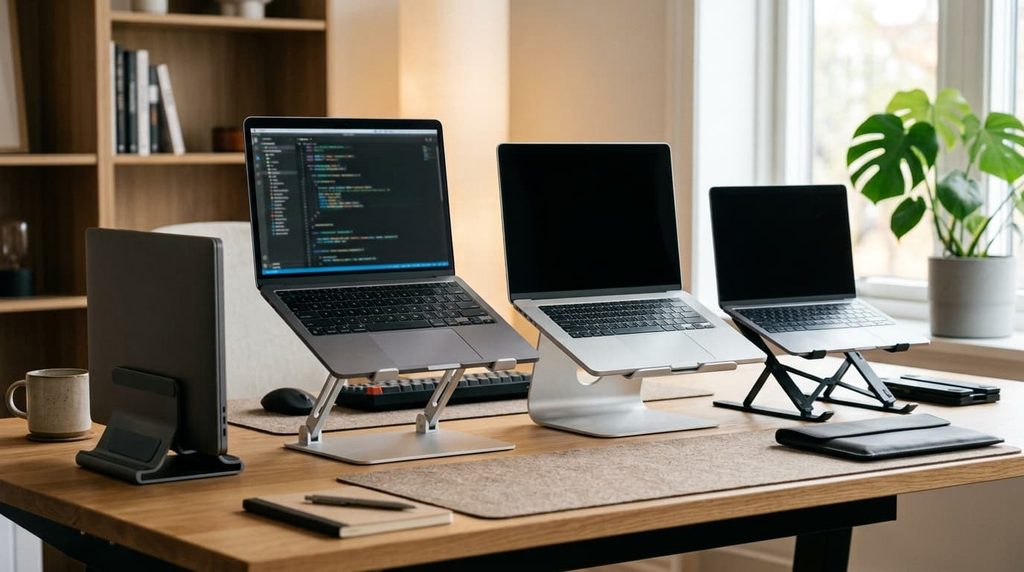
There isn’t one perfect design for everyone. The best type depends on how you use your computer.
Fixed Laptop Stands
Fixed stands are straightforward and often have fewer moving parts.
They can be a good choice if you have a permanent desk and already know the screen height that works for you.
Advantages:
- Simple construction
- Usually stable
- Minimal adjustment required
- Clean appearance
- Good for permanent setups
Potential drawback: You have less flexibility if you later change your chair, desk, laptop, or working position.
Adjustable Laptop Stands
Adjustable stands allow you to change the height and angle.
They’re especially useful for people who alternate between different tasks or want more control over their desk arrangement.
You can raise the screen for a seated workstation, lower it when needed, or adjust the angle to reduce unwanted reflections.
The extra flexibility can be worthwhile, but pay attention to stability. A stand with many adjustment points is not necessarily better if it becomes unstable under the weight of your laptop.
Foldable Laptop Stands
Foldable models are aimed at people who frequently move between locations.
Students, remote workers, travelers, and people who work from coffee shops or different rooms may appreciate a stand that folds into a compact shape.
The main compromise is that portability sometimes comes at the expense of maximum stability or adjustment range.
Vertical Laptop Stands
A vertical stand holds a closed laptop upright rather than positioning the screen for viewing.
This type is particularly useful when the laptop is being used in clamshell mode with an external monitor, keyboard, and mouse.
It can also help keep a desk organized by giving the laptop a dedicated storage position.
However, compatibility matters because the laptop needs to fit securely inside the stand.
What to Look for Before Buying
Before choosing a laptop stand, consider more than appearance.
1. Check Laptop Size and Weight
Look at your laptop’s dimensions and weight before ordering.
A stand designed for a lightweight 13-inch laptop may not be ideal for a large workstation-class or gaming laptop.
The platform should provide adequate support without excessive wobbling.
2. Look for a Stable Base
Stability matters more than fancy features.
A laptop stand should stay firmly in place when you’re typing, adjusting the screen, or connecting a cable.
A heavy base can be useful for a permanent desk setup, while a lighter folding design may make more sense for travel.
3. Consider Height Adjustment
If several people use the workstation or you frequently change positions, adjustability can be valuable.
If you’re buying for your own permanent desk, however, a fixed stand at the correct height may be all you need.
4. Check the Adjustment Range
An adjustable stand is only useful if it reaches a suitable height.
Before buying, consider your desk height, chair height, laptop screen size, and whether you’ll use an external keyboard.
5. Examine the Laptop Supports
The edges that hold the laptop should provide enough support without interfering with ports.
This becomes particularly important if you regularly connect USB devices, charging cables, headphones, HDMI equipment, or other accessories.
6. Consider Cable Management
A stand can make a desk look cleaner, but only if your cables are managed properly.
If your laptop is elevated, cables may hang from the sides. Leaving enough clearance around the ports can make connecting and disconnecting devices easier.
7. Think About Portability
If you travel frequently, weight and folded size may matter more than maximum height.
For a home office, those factors may be less important than stability and adjustability.
How to Set Up a Laptop Stand Correctly

Buying the stand is only half the job.
Start by placing it directly in front of you rather than at an angle. OSHA recommends positioning the primary monitor directly in front of the user so the head and neck do not need to remain turned to one side.
Then adjust the height.
The top of the screen should generally be around eye level or slightly below it. You should be able to view the display without repeatedly bending your neck downward or tilting your head backward.
Next, position your keyboard and mouse.
If you plan to type for long periods, an external keyboard is usually the more practical solution when the laptop is significantly elevated. Your mouse should remain close enough that you aren’t constantly reaching away from your body.
Finally, check your chair.
A laptop stand cannot compensate for a chair that leaves your feet unsupported or forces you to work with your shoulders raised. OSHA recommends adjusting the chair along with the monitor, keyboard, and desk rather than treating each component separately.
The Best Laptop Stand Setup for Long Work Sessions
For someone who spends several hours a day at a desk, a simple arrangement can work extremely well:
Laptop → adjustable stand → external keyboard → external mouse → comfortable chair
If you also have a desktop monitor, the laptop can sit beside it or underneath/near the monitor depending on the setup.
The goal isn’t to create an expensive workstation. It’s to make each component perform one job well.
The laptop stand handles screen positioning.
The external keyboard handles typing.
The mouse handles navigation.
The monitor, if you have one, provides additional screen space.
Your chair supports your body.
This separation gives you considerably more control than using the laptop completely flat on the desk.
Laptop Stand vs. Laptop Cooling Pad
These products are sometimes confused, but they serve different purposes.
A laptop stand primarily raises and positions the computer.
A cooling pad is specifically designed to assist with cooling, often using one or more fans.
Some laptop stands have open designs that can improve ventilation, but that doesn’t make them equivalent to an active cooling pad.
If your main problem is an uncomfortable viewing angle, choose a stand.
If your laptop consistently reaches high temperatures during demanding workloads, investigate the actual cause rather than assuming either product will solve everything.
For many ordinary office, school, and browsing tasks, a well-designed passive stand may be all that’s needed.
Who Should Consider a Laptop Stand?
A stand can make sense for many different users.
Remote Workers
If your laptop is your primary work computer, raising the display and adding a separate keyboard and mouse can make a home office much more flexible.
Students
Students who spend long periods writing papers, researching, or attending online classes may appreciate having a more adjustable desk setup.
Content Creators
Video editors, photographers, and designers often benefit from combining a laptop with an external monitor and peripherals.
Gamers
A stand can free up desk space and potentially improve airflow around the laptop, although serious gaming setups should still pay attention to the laptop’s cooling system.
Travelers
A compact folding stand can turn an ordinary hotel desk or temporary workspace into a more usable workstation.
Small-Desk Users
If desk space is limited, raising the laptop can create room underneath or around it for other accessories.
Common Laptop Stand Mistakes to Avoid
A few mistakes can make an otherwise good stand less useful.
Choosing based only on appearance: A stylish aluminum stand may look excellent but still be poorly suited to your laptop or desk.
Ignoring weight limits: Always make sure the stand can safely support your computer.
Raising the screen too high: Higher isn’t automatically better. Your screen position should suit your body and chair.
Typing on an elevated built-in keyboard: If the laptop is raised significantly, using its keyboard for long periods may create an awkward arm and wrist position.
Blocking ventilation: Make sure the stand doesn’t cover important intake vents.
Forgetting the mouse: A good screen position won’t help much if your mouse is positioned so far away that you’re constantly reaching.
Buying more adjustment than you need: A highly adjustable stand can be useful, but unnecessary complexity can add weight, cost, and potential instability.
Is a Laptop Stand Worth It?
For many people, yes.
A laptop stand is a relatively simple accessory that can change the way a laptop fits into a desk setup. Its biggest value isn’t the stand itself; it’s the additional flexibility it gives you.
If you spend only a few minutes at a laptop each day, you may not notice much difference. But if your computer is part of your daily work, school, or creative routine, improving the relationship between the screen, keyboard, mouse, chair, and desk can be worthwhile.
The key is to choose a stand that matches your actual needs rather than buying the most expensive or feature-packed option.
OSHA’s workstation guidance supports the broader idea behind this approach: computer equipment should be arranged to encourage neutral positions, with the screen, keyboard, chair, and other components adjusted together.
Frequently Asked Questions About Laptop Stands
1. Is a laptop stand worth buying?
Yes, a laptop stand can be worthwhile if you spend several hours working, studying, or browsing on your laptop. It can raise the screen to a more comfortable viewing height, free up desk space, and make it easier to use an external keyboard and mouse.
2. Does a laptop stand improve posture?
A laptop stand can help you create a more comfortable workstation by raising the screen and reducing the need to constantly look downward. However, proper posture also depends on your chair, desk, keyboard, mouse, and overall workstation arrangement.
3. Can a laptop stand help with cooling?
It can help in some situations. A stand that raises the laptop and leaves ventilation areas unobstructed may allow better airflow around the device. However, it is not a replacement for proper cooling maintenance or an active cooling pad.
4. Should I use an external keyboard with a laptop stand?
If you raise the laptop significantly, an external keyboard and mouse are usually a better choice for extended typing. This allows you to position the screen higher without forcing your arms and wrists into an awkward position.
5. What height should a laptop stand be?
There isn’t one universal height. Ideally, position the laptop so the top portion of the screen is around eye level or slightly below it while you are sitting comfortably. You may need to adjust the stand based on your chair and desk height.
6. Are adjustable laptop stands better?
Adjustable stands offer more flexibility because you can change the height and viewing angle. They’re particularly useful if you frequently change positions or use the same stand in different locations. A fixed stand can be perfectly adequate if you already know the height that works for you.
7. Can a laptop stand damage a laptop?
A properly designed and correctly sized stand should not damage a laptop. However, make sure the laptop is securely supported, the stand is rated for its weight, and important ventilation openings are not blocked.
8. Can I use a laptop stand with a gaming laptop?
Yes. A sturdy laptop stand can work well with a gaming laptop, provided it can support the computer’s weight and accommodate its size. An open design may also provide useful clearance around the laptop’s ventilation areas.
9. Is a laptop stand useful for a small desk?
Yes. Raising the laptop can create additional usable space underneath or around it. A compact or foldable model can be particularly useful when desk space is limited.
10. What should I look for when buying a laptop stand?
Consider your laptop’s size and weight, the stand’s stability, height and angle adjustment, portability, ventilation design, material, and compatibility with your ports and accessories. Choose based on your actual workstation needs rather than appearance alone.
Final Thoughts
A laptop stand is a small desk accessory, but it can have a surprisingly large impact on how you use your computer.
The right stand can raise the screen to a more suitable viewing position, free up valuable desk space, improve organization, and make it easier to build a workstation around an external keyboard and mouse. It can also provide better clearance underneath some laptops, although it shouldn’t be treated as a replacement for proper cooling maintenance.
The smartest approach is to start with your needs. Think about how many hours you spend at the computer, whether you use an external keyboard, how much desk space you have, whether you travel, and whether you need height adjustment.
You don’t need an elaborate setup to create a better workspace. Sometimes, simply raising your laptop and arranging the rest of your equipment properly is enough to make your desk feel more comfortable, organized, and purposeful.
For additional workstation guidance, OSHA’s Computer Workstations guide is a useful reference for screen placement, keyboard positioning, seating, and general workstation setup.
1 thought on “Laptop Stand: Smart Ways to Improve Your Desk Setup”