
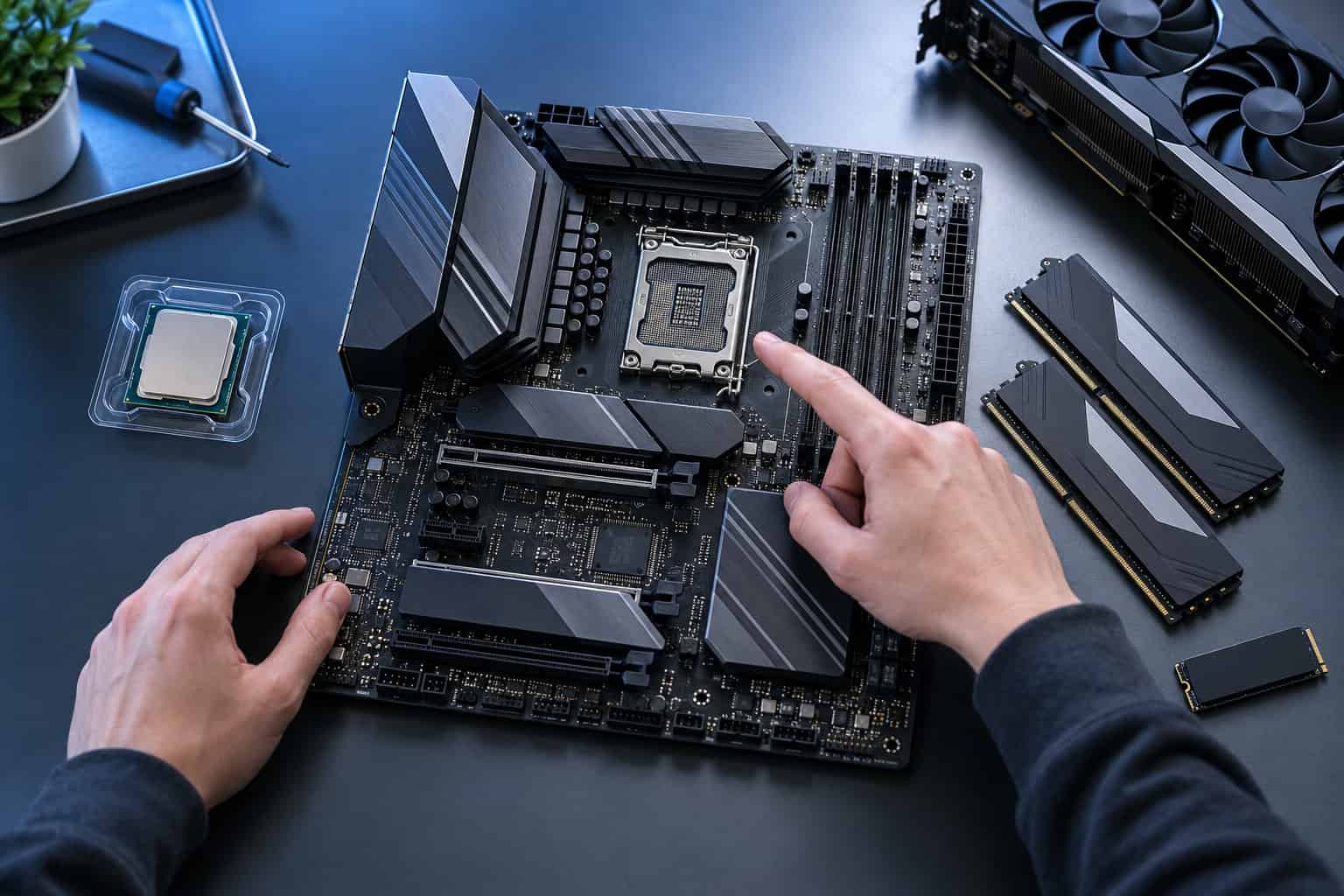
Building your first PC becomes much easier when every component is compatible from the start. A motherboard determines which processor, memory, storage drives, expansion cards, and case you can use. It also controls how many ports and upgrade options your system provides.
Start with your processor and intended use, then compare socket type, chipset, size, memory support, storage connections, and networking. An expensive model will not automatically increase gaming performance, so focus on features your build can actually use. The following guide explains each decision in practical terms, helping you choose a reliable foundation without overspending.
What Is a Motherboard and Why Does It Matter?
The mainboard is the large printed circuit board that connects a computer’s essential hardware. The processor, RAM, graphics card, storage drives, cooling equipment, and power supply all connect directly or indirectly to it.
Its primary functions include:
- Distributing power to installed components
- Allowing hardware to exchange data
- Providing physical slots and connectors
- Managing startup through BIOS or UEFI firmware
- Supporting external devices through rear and internal ports
- Monitoring temperatures, fan speeds, and system voltages
Because a motherboard establishes the PC’s basic platform, selecting the wrong one can create compatibility problems that cannot be solved through software. For example, a board built for one processor socket cannot accept a chip designed for another socket, even when both products come from the same manufacturer.
How Does a System Board Work?
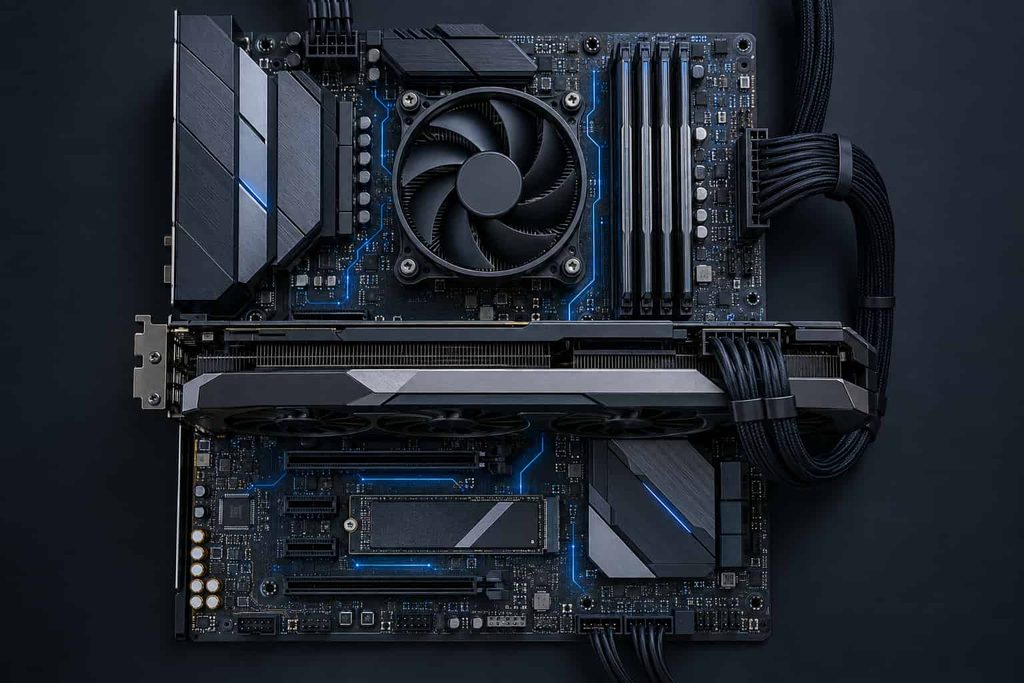
The processor handles calculations, while the system board provides the pathways that connect it to memory, storage, graphics, and peripheral devices. These pathways include data buses, PCI Express lanes, memory channels, and connections managed by the chipset.
The chipset determines many platform features, including the number of available USB ports, SATA connections, PCIe lanes, and supported overclocking functions. However, some connections, such as the main graphics slot and primary NVMe slot, may communicate directly with the processor.
When you turn on the computer, the BIOS or UEFI checks installed hardware before loading the operating system. UEFI also lets you configure memory profiles, boot order, fan curves, security settings, and other hardware-level options.
Why Choosing the Right Board Is Important
The right model helps your components operate as intended while leaving room for sensible upgrades. It can provide additional memory slots, more M.2 storage connections, faster networking, and enough fan headers for your case.
A poor choice can create several limitations:
- The processor may not be supported.
- The board may not fit inside the case.
- The RAM generation may be incorrect.
- Front USB ports may have no compatible internal header.
- Storage connections may be too limited.
- Power delivery may be unsuitable for a high-performance processor.
- Wi-Fi or Bluetooth may require a separate adapter.
The goal is not to purchase the most expensive option. It is to find the least expensive option that reliably supports your current parts, necessary connections, and realistic upgrade plans.
Check CPU and Chipset Compatibility First
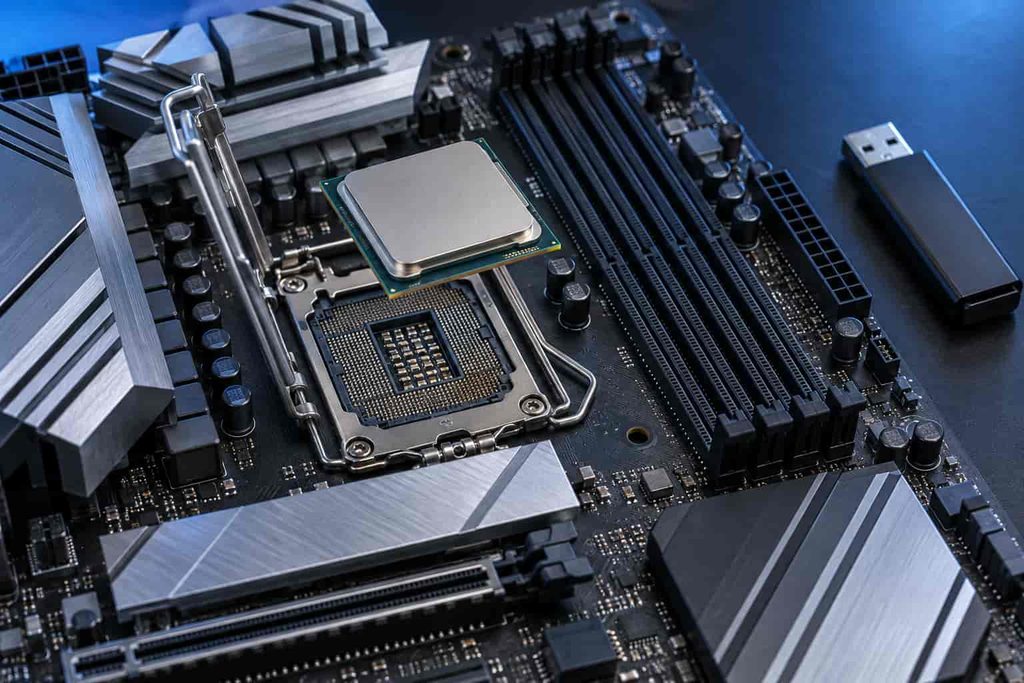
Match the Processor Socket
Choose your processor before selecting the board. Every desktop processor uses a particular socket, and the physical socket must match exactly.
Intel and AMD use different platforms, and socket names can change between processor generations. Even processors from the same brand may require completely different boards. Intel provides an official desktop processor compatibility tool that lets buyers search by processor family, generation, and model.
Do not depend only on a retailer’s product title. Confirm compatibility using the board manufacturer’s specifications and CPU support list.
Understand the Chipset
A matching socket does not always guarantee full compatibility. The chipset must also support the processor, and some combinations require a particular BIOS version.
Chipsets within the same platform usually offer different levels of connectivity and control. Entry-level versions focus on basic computing, midrange options balance cost and expansion, and premium chipsets add more high-speed ports, PCIe lanes, or overclocking controls.
AMD’s official Socket AM5 chipset information, for example, shows how features such as PCIe support, processor overclocking, USB connectivity, and SATA capacity vary among compatible chipsets. AMD also notes that some processors may require a BIOS update when used with earlier boards.
Check the BIOS Version
A model manufactured before your processor was released may need updated firmware. Some products offer BIOS Flashback, which can update firmware using a USB drive without requiring an older processor. That feature can save considerable time for a first-time builder.
If the product lacks CPU-free updating, ask the retailer which BIOS version is installed. Otherwise, you could assemble the entire PC only to find that it will not boot.
Motherboard Form Factors Compared
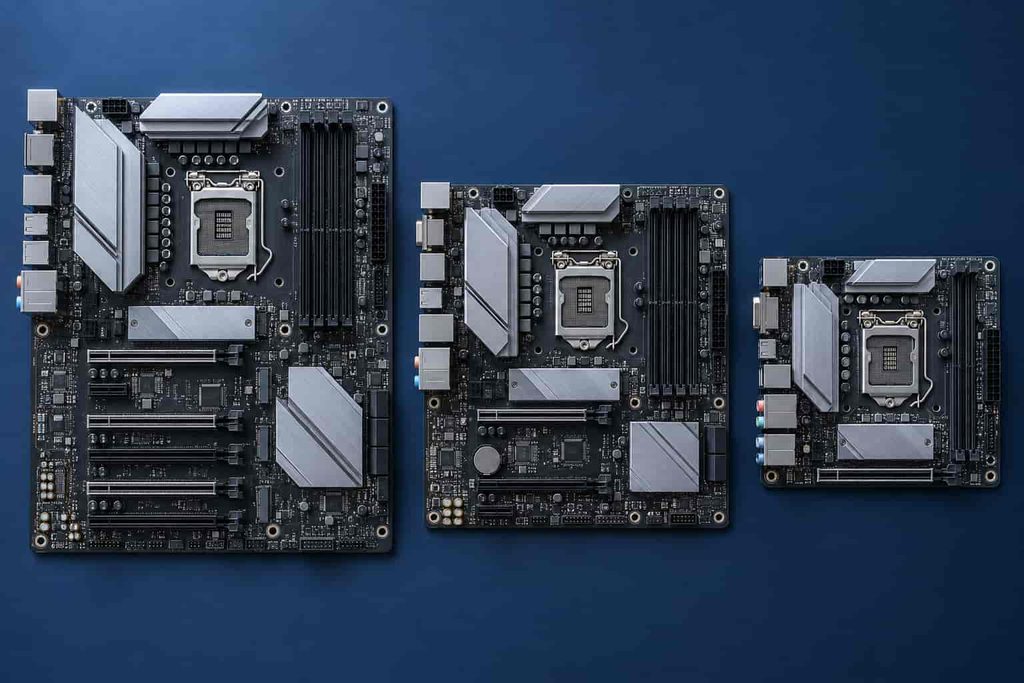
Form factor describes a board’s physical dimensions and general layout. It affects case compatibility, expansion capacity, and the number of accessible connectors.
| Form factor | Approximate size | Expansion capacity | Suitable applications | Main drawback |
|---|---|---|---|---|
| ATX | 12 × 9.6 inches | High | Gaming, content creation, and upgrade-focused PCs | Requires a larger case |
| Micro-ATX | 9.6 × 9.6 inches | Moderate | Affordable gaming, office, and general-use builds | Fewer expansion slots than ATX |
| Mini-ITX | 6.7 × 6.7 inches | Limited | Compact desks, entertainment systems, and portable PCs | Limited expansion and tighter installation |
ATX
ATX models usually provide several expansion slots, more storage connectors, and additional fan headers. They work well for users who plan to add capture cards, networking cards, multiple storage devices, or other hardware.
The drawback is size. An ATX product requires a compatible mid-tower or full-tower case and may cost more than a simpler option with similar core performance.
Micro-ATX
Micro-ATX often provides the strongest balance for a first build. It usually supports a full-size graphics card, multiple RAM modules, NVMe storage, and at least one additional expansion card.
Its smaller dimensions fit a wider range of cases. However, expansion may become restrictive if you later add several internal cards.
Mini-ITX
Mini-ITX works well for compact gaming computers and living-room systems. These products generally have only two memory slots and one full-size PCIe slot, so upgrading requires more planning.
Small cases also make cable management and cooling more difficult. First-time builders should choose Mini-ITX only when compact size is a genuine priority.
Important Features to Consider
RAM Generation and Capacity
Check whether the selected platform uses DDR4 or DDR5. The modules are physically different and cannot be installed interchangeably.
Also review:
- Maximum supported memory capacity
- Number of DIMM slots
- Supported memory speeds
- Dual-channel configuration
- XMP or EXPO profile support
- The manufacturer’s tested memory list
Two slots may be enough for a compact or affordable PC. Four slots provide greater flexibility, although upgrading is sometimes more reliable when using a matched memory kit instead of combining different modules.
PCI Express Slots
The longest PCIe slot normally holds the graphics card. Additional slots can support a capture card, sound card, high-speed network adapter, storage expansion card, or Wi-Fi adapter.
PCIe generations provide different bandwidth levels, but newer devices can often operate in older-generation slots at the lower supported speed.
Pay attention to slot spacing as well. A thick graphics card may cover smaller slots, making them unavailable even though they appear on the specification sheet.
M.2 and SATA Storage Connections
M.2 slots support compact solid-state drives installed directly on the board. Most new PC builds use an NVMe drive as the primary storage device because it avoids data and power cables.
SATA ports remain useful for 2.5-inch SSDs and larger hard drives. Before installing multiple drives, read the manual because some M.2 slots share bandwidth with SATA ports or expansion slots. Activating one connection may disable another.
An included M.2 heatsink is convenient, particularly for faster drives, but it should not outweigh more important compatibility features.
Rear and Internal Ports
Review the rear input/output panel instead of counting only the total number of USB ports. Make sure it offers the port types and speeds required for your keyboard, mouse, headset, external drives, printer, camera, and other equipment.
Useful connections may include:
- USB Type-A
- USB Type-C
- Ethernet
- Audio jacks
- Optical audio
- Wi-Fi antenna connectors
- HDMI or DisplayPort
- BIOS Flashback button
Display outputs on the rear panel usually require a processor with integrated graphics. They do not automatically provide video when the installed chip lacks an integrated graphics processor.
Internal headers matter too. Your case may include front USB-C, USB-A, audio, fans, and lighting, but those features work only when the board provides matching headers.
Power Delivery and Cooling
Voltage regulator modules, commonly called VRMs, supply controlled power to the processor. Basic power delivery is normally adequate for lower-power chips, while demanding processors benefit from stronger components and effective VRM heatsinks.
Count the available cooling headers before purchasing. A typical build may need connections for the CPU cooler, rear exhaust fan, front intake fans, and possibly a liquid-cooling pump. Fan splitters or hubs can add connections, but built-in headers make setup easier.
Networking, Wireless Features, and Audio
Wired Ethernet remains the most consistent option for gaming and large downloads. Faster Ethernet can be useful for local file transfers, but it provides no benefit if the rest of your network operates at a lower speed.
Integrated Wi-Fi and Bluetooth are worthwhile when the PC will be far from a router or use wireless accessories. Buying these features as part of the board often creates a cleaner setup than adding external adapters.
Onboard audio is sufficient for most speakers, headsets, video calls, and games. Specialized audio hardware becomes more relevant for professional recording, high-impedance headphones, or advanced studio equipment.
How to Choose a Motherboard for Your Build
Follow a component-first process instead of shopping by appearance or brand name.
- Choose the processor. Record its exact model, socket, and supported chipsets.
- Confirm firmware support. Check the CPU support list and required BIOS version.
- Choose a case size. Make sure the case supports the selected form factor.
- Select the memory. Match DDR generation, capacity, speed, and profile support.
- Plan your storage. Count the M.2 and SATA drives you will install now and later.
- List your ports. Include rear connections and case front-panel headers.
- Review expansion needs. Consider the graphics card and any future internal cards.
- Check cooling connections. Count fans, pumps, and lighting headers.
- Compare warranties and return policies. Dead-on-arrival hardware is uncommon but possible, so straightforward returns are valuable.
- Read the complete manual. Look for shared lanes, disabled ports, slot limitations, and installation instructions.
Match the Board to Your Intended Use
A home or office PC typically needs modest power delivery, one M.2 slot, standard Ethernet, and enough USB connections for everyday peripherals. Paying extra for advanced overclocking support adds little value.
A gaming build needs a suitable graphics slot, reliable processor support, adequate cooling connections, and enough storage for a growing game library. The board rarely changes frame rates significantly when the processor and graphics card already operate correctly.
A content-creation workstation may benefit from additional M.2 slots, more USB bandwidth, faster networking, stronger power delivery, and expansion support for capture or storage cards. Compact entertainment PCs place greater value on Wi-Fi, Bluetooth, efficient cooling, and Mini-ITX dimensions.
Benefits and Drawbacks of Different Price Tiers
Entry-Level Options
Affordable models can handle office work, web browsing, home entertainment, and many mainstream gaming systems. They reduce build cost and avoid charging for features that may never be used.
The tradeoffs often include fewer storage connections, limited high-speed USB, basic audio, fewer fan headers, and less flexible power delivery. Upgrade options may also be restricted.
Midrange Options
Midrange boards generally offer a practical combination of connectivity, cooling, expansion, and build quality. They often include multiple M.2 slots, stronger VRMs, faster Ethernet, better rear ports, and optional wireless connectivity.
For most first-time gaming and productivity builds, this tier offers the most useful balance. Still, compare individual specifications because two similarly priced products can provide very different connections.
Premium Options
High-end models may add advanced overclocking controls, extensive PCIe connectivity, premium audio, additional diagnostic displays, USB4, and elaborate cooling.
Those features suit enthusiasts and specialized workstations, but they rarely justify cutting the budget for the graphics card, processor, storage, or power supply. Buy premium only when you can identify a clear use for its added capabilities.
Practical Tips and Common Mistakes
Create a full parts list before ordering anything. A compatibility-checking website can help identify obvious conflicts, but always confirm critical details on the manufacturers’ product pages.
Avoid these common mistakes:
- Choosing by socket without checking chipset and BIOS support
- Buying DDR4 memory for a DDR5-only platform
- Selecting an ATX board for a case that supports only smaller sizes
- Forgetting an internal header for the case’s front USB-C port
- Assuming every M.2 slot supports the same speed or drive type
- Ignoring shared bandwidth among storage and PCIe connections
- Paying for overclocking features that will never be used
- Purchasing a model without Wi-Fi when wired Ethernet is unavailable
- Installing standoffs in the wrong case positions
- Connecting the monitor to the rear display output when using a dedicated graphics card
Inspect the CPU socket before installation, especially if the product arrived with damaged packaging. Bent socket contacts can prevent startup and may complicate warranty service. Handle the board by its edges, work on a clean surface, and install components without forcing them.
Keep the box, socket cover, receipt, accessories, and serial-number information until the computer has passed initial testing. If the system fails, begin with basic troubleshooting such as checking power cables, reseating RAM, clearing CMOS, and reviewing diagnostic lights. Physical damage, liquid exposure, burned components, or damaged socket contacts may require professional motherboard repair rather than repeated power-on attempts.
Frequently Asked Questions
Can Any Motherboard Work With Any Processor?
No. The processor must match the board’s CPU socket, chipset, and supported BIOS version. Always check the manufacturer’s CPU support list before purchasing. A matching socket alone does not guarantee that the processor will work without a firmware update.
Does a Motherboard Affect Gaming Performance?
It usually has little direct effect on frame rates when the processor, graphics card, and memory operate correctly. However, inadequate power delivery, limited memory support, overheating, or restricted PCIe connectivity can reduce performance or prevent components from reaching their intended capabilities.
Is ATX or Micro-ATX Better for a First PC Build?
Micro-ATX is often a practical choice because it costs less, fits more cases, and still provides enough connections for a standard gaming or home PC. ATX is better when you need additional expansion slots, storage connections, fan headers, or room for future upgrades.
Should I Choose DDR4 or DDR5?
Choose the memory generation supported by your processor platform and system board. DDR4 can reduce the cost of an affordable build, while DDR5 offers a newer platform and greater long-term upgrade potential. DDR4 and DDR5 modules are physically different and cannot be used interchangeably.
Do I Need Built-In Wi-Fi and Bluetooth?
Built-in wireless connectivity is useful when Ethernet is unavailable or you plan to use Bluetooth headphones, controllers, keyboards, and other accessories. If you always use wired networking and do not need Bluetooth, you may save money by choosing a model without integrated wireless features.
How Much Should I Spend on a Motherboard?
Spend enough to obtain reliable processor support, suitable power delivery, required ports, adequate storage connections, and realistic upgrade options. Most first-time builders do not need a premium model. Prioritize the processor, graphics card, power supply, and storage before paying for advanced lighting or overclocking features.
Can I Upgrade the Motherboard Later?
Yes, but replacing it involves disconnecting and reinstalling most PC components. A new board may also require a different processor, memory generation, or Windows reactivation. Choosing a platform with useful expansion capacity now can make future upgrades easier and less expensive.
Final Thoughts
The right motherboard should match your processor, fit your case, support your memory, and provide enough storage, ports, cooling connections, and expansion capacity. Start with compatibility, then pay only for features that serve your current needs or realistic upgrades.
For most first-time builders, a well-equipped Micro-ATX or ATX midrange model offers the strongest balance of cost and flexibility. Verify the CPU support list, BIOS version, internal headers, and lane-sharing rules before ordering, and your first build will be far easier to assemble and maintain.
1 thought on “How to Choose a Motherboard for Your First PC Build”